Tampilkan postingan dengan label Flash. Tampilkan semua postingan

Minggu, 12 Juni 2016

How to make evaluation?

Macromedia flash provides many features to help us make a project such as  evaluation.  It using action script scene by scene. To make it more details ,let`s check the picture and video below!!


check it out the tutorial video!!


Action Script

Action Script

Call a movie or swf file
1.       Please make a file swf before
2.       Make a button, i.e. kind of job, description, place of work
3.       Right click in kind of job button→action
4.       Please write
1.       on (release) {
2.             loadMovieNum(“your file.swf”,0);
3.       }


Using stop , pevious, and next action in scene by scene
·         Stop
1.       Make a simple workspace of scene by scene.
2.       Make a new layer, then label with stop
3.       In timeline, right clickaction
4.       Please write
1.       Stop ();
5.       If in timeline appears alpha symbol (α) that means your action stop is work


·         Previous and next
1.       Make a simple workspace of scene by scene
2.       Make a new layer special for next and previous button
3.       Right click in previous button actions
1.       on (release) {
2.             prevFrame ();
3.       }
4.       Right click in next button actions
1.       on (release) {
2.             prevFrame ();
3.       }


https://www.youtube.com/watch?v=L_5Xx5OwnsY


Hoe to make a button?


How to make a button?
1.       Draw object using shape tool
2.       Convert object into symbol. Right click in object→convert to symbol→button.
3.       Double click in object, then will appear menus“UP,OVER,DOWN, HIT” in timeline
Function of this menus are to change the button while mouse up,over,down,or hit the button.
4.       You can give different color to up,over,down,and hit menus in order to make them different.


Guiding Animation

Guiding Animation


1    1.   Draw a tack line using pencil tools
2.       Right click in layer 1→guide
3.       Create a new layer then make a object. Put it in the first point of track.
4.       Convert the object into graphic
5.       In timeline,layer ; right click in frame 35→insert keyframe
6.       Drag object into last pont of tarck.
7.       Than create in layer 2
8.       Yeay! Your guiding animation done!


How to make a button?


How to make a button?
1.       Draw object using shape tool
2.       Convert object into symbol. Right click in object→convert to symbol→button.
3.       Double click in object, then will appear menus“UP,OVER,DOWN, HIT” in timeline
Function of this menus are to change the button while mouse up,over,down,or hit the button.
4.       You can give different color to up,over,down,and hit menus in order to make them different.

Motion Shape

Motion Shape : to chage the object or words into the shape


Step

1.       Draw a object. In timeline, right click in frame 30 insert keyframe
2.       Write a word “LearnShare”. You can give different color to make it more interesting
3.       Break apart the word with click Ctrl+B two times.
4.       Drag the object beside the word then erase the object
5.       Put cursor in timeline frame 10
6.       Choose propertiestweenshape

7.       To check it click Ctrl+enter

Motion Tween

 Motion Tween

Step
1.       Draw a object using oval, rectangel or athers shape tools
2.       Right click Convert object into symbol graphic
3.       In timeline, right click in frame 10 insert keyframe
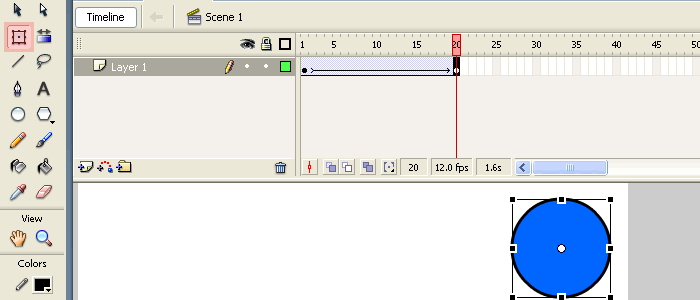
4.       Drag object and click right in frame 1 create motion tween
5.       To check your work click Ctrl+enter
6.       Tadaa! Your motion tween is work!


Macromedia Flash

 This picture is symbol of Macromedia Flash. Macromedia flash is one of software which support to make any-kinds of media learning, such as Animation, presentation, short-movie clip and so on. So this software is very useful to everyone which need to make small or big project. Okay! Do not take to long, let`s talk about it!
Introducing of Macromedia Flash Professional 8
  1.     Tool : There are many icon tools with different functions

1.      Selection tool : to choose the object in workspace
2.      Sub selection tool : to choose frame/line in object
3.       Free transform tool : to change the size of object
4.       Gradient transform tool : to change the gradient of colors
5.       Line tool : to make line object
6.       Lasso tool : to choose a half of part of object
7.      Pen tool : to make line curve
8.      Text tool : to write text
9.      Oval tool : to draw circle or ellipse object
10.  Rectangle tool : to draw rectangle object
11.  Pencil tool : to make line freehand
12.  Brush tool : to make line with brush
13.  Ink bottle tool : to give line color
14.  Paint bucket tool : to fill the color of object
15.  Eyedropper tool : to choose a color from object
16.  Eraser tool : to erase object
17.  Hand tool : to drag object freehand
18.  Zoom tool : to minimize or maximize workspace area
19.  Stroke color : to give color to line object  
20.  Fill color : to give color in object (fill)


 2.   Timeline: a window organizes frame and layer

 3.  Workspace: ouw work area

 4. Properties: to organize our workspace

 5.  Library: place for our images,audio,buttons and so on which used to our workspace.

This is my simple Flash Project